Shared metafields
Shared Metafields are available on Premium plans and above.
BigCommerce metafields are a powerful way to store data against products, categories, and other resources. However, adding the same metafields to every product is cumbersome and error-prone.
What if you could define all your product metafields in advance, along with their expected content type? What if you could make quick edits directly from the products view in BigCommerce?
Shared Metafields simplifies metafield management, making day-to-day operations quicker and easier.
Add your shared metafields
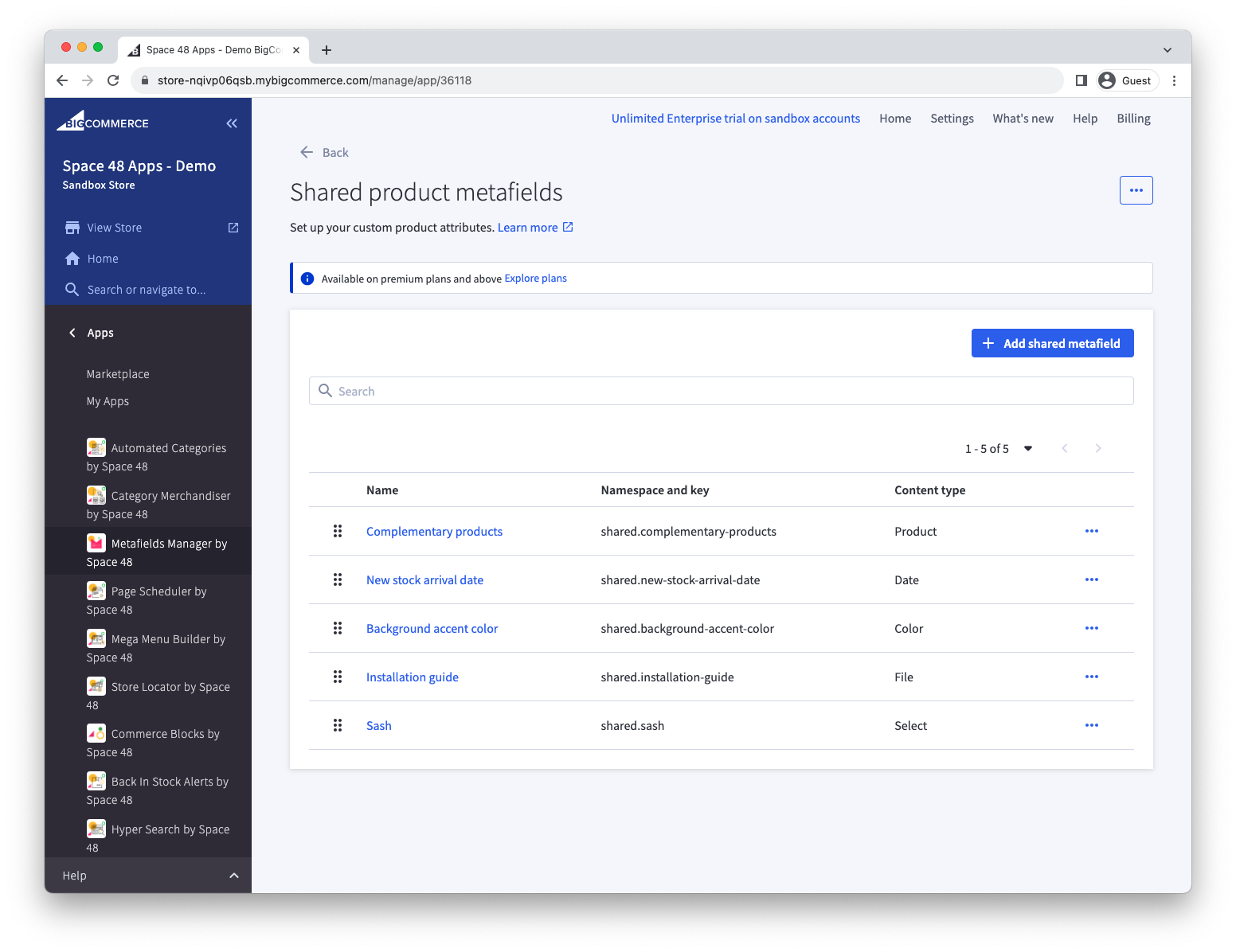
Choose a resource (category, brand, product, variant, channel, or order), choose "Manage shared metafields", and select "Add shared metafield".
You will then be ready to define the shared metafield options.
Options
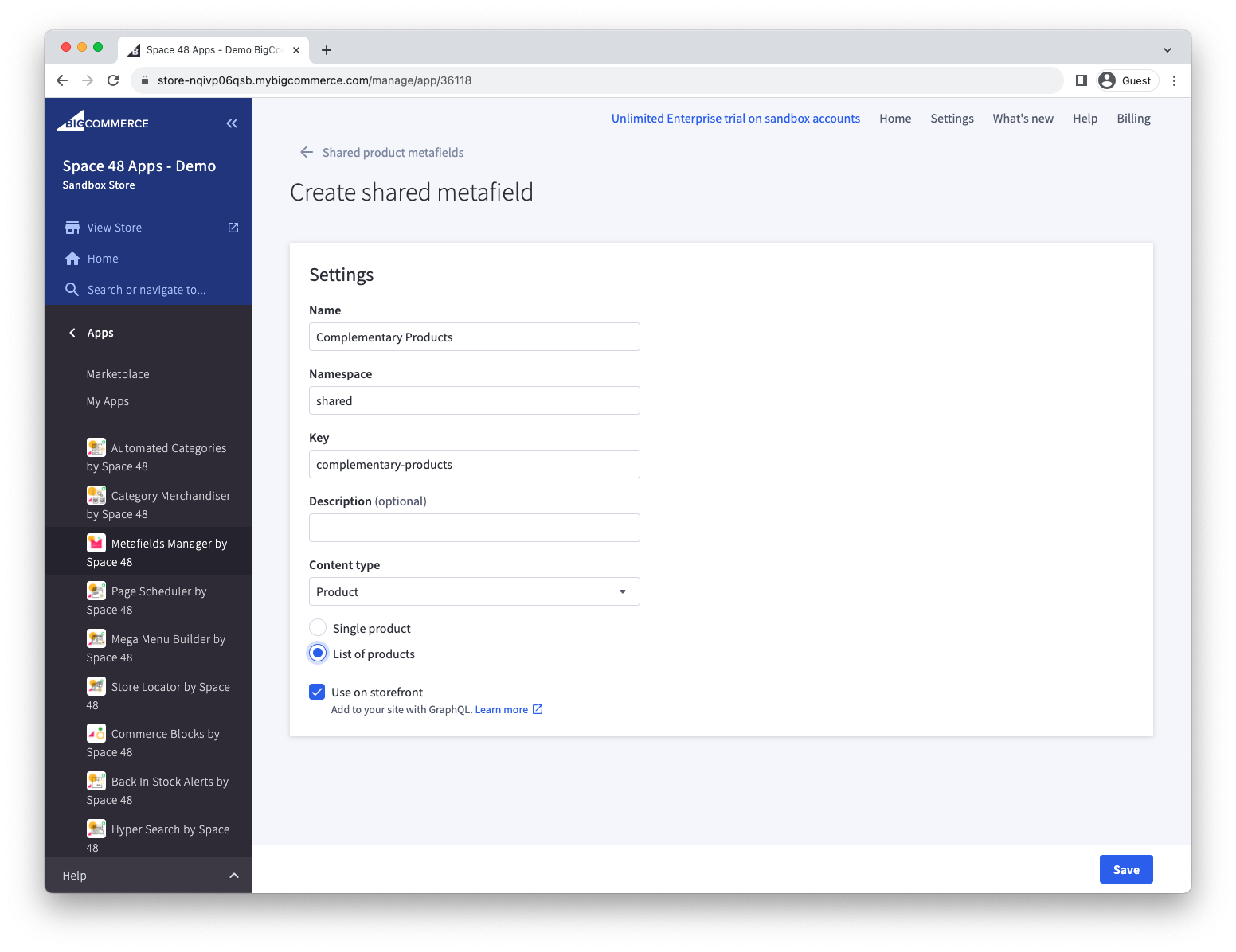
The options available are:
| Option | Description |
|---|---|
| Name | A friendly name for your field. |
| Namespace | The namespace and key together uniquely identify the field in BigCommerce. Use a namespace to group related keys; you might choose shared. |
| Key | A short name for your field. It must be unique within its namespace and cannot contain spaces. |
| Description | An optional description shown when editing metafields. |
| Content type | The type of data stored in the field. Supported types include text, rich text, brand, category, checkbox, color, date, date and time, decimal, file, HTML, JSON, number, page, product, select, and URL. |
| Single/List | For supported content types, choose whether the field accepts one item or a list of items, such as one product or several products. |
| Option values | For a select field, define the valid options that can be assigned to it. |
| Read-only | Prevents the field from being edited in Metafields Manager. This does not prevent changes through the API. |
| Use on storefront | Enables the field in the GraphQL API response so a developer can display it in the storefront. |
Once you've created your first metafield, feel free to continue adding more to complete your list.
Developer note
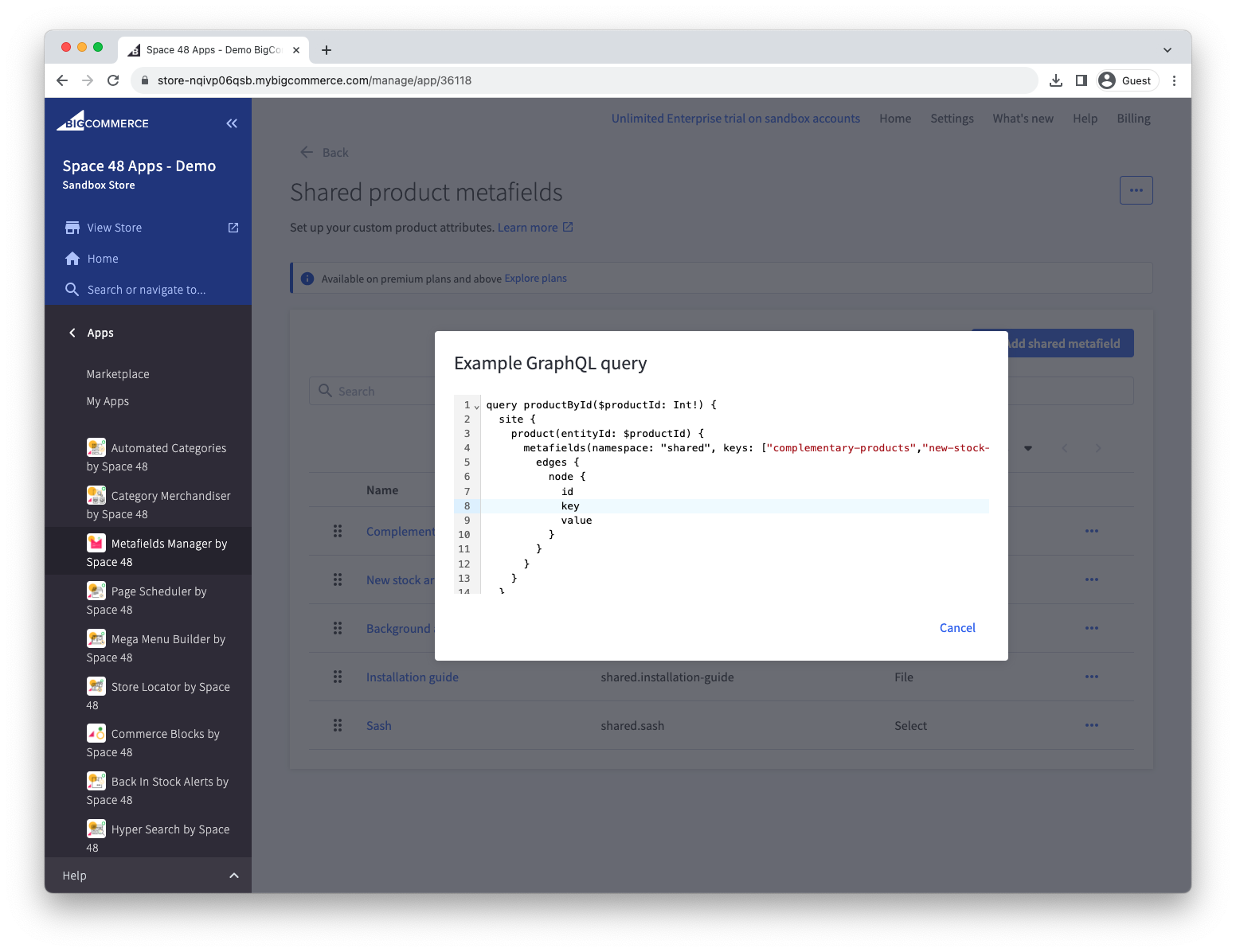
We provide an example GraphQL query to access your shared metafields on the storefront. Find it by clicking the three dots at the top of the page.
Follow our guides for using metafields on the storefront.
Edit shared metafields
After you add shared metafields, open the associated resource, such as Products, and choose an item to see a form for updating them.
The example below shows a list of shared metafields on channels which are being used as "store settings".
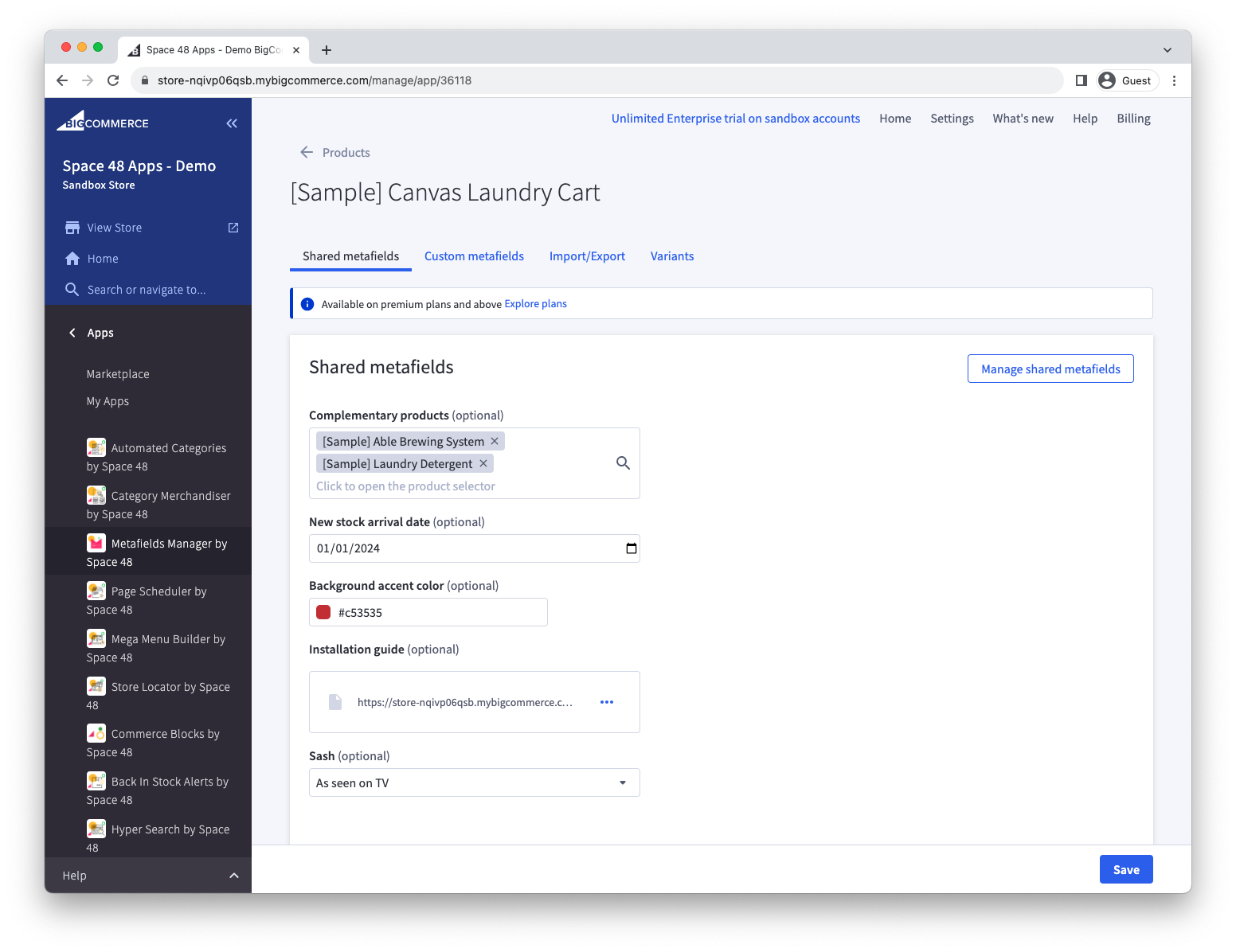
You can continue to manage metafields that are not shared between items. These are shown in the "Custom metafields" tab.
Quick edit shared metafields
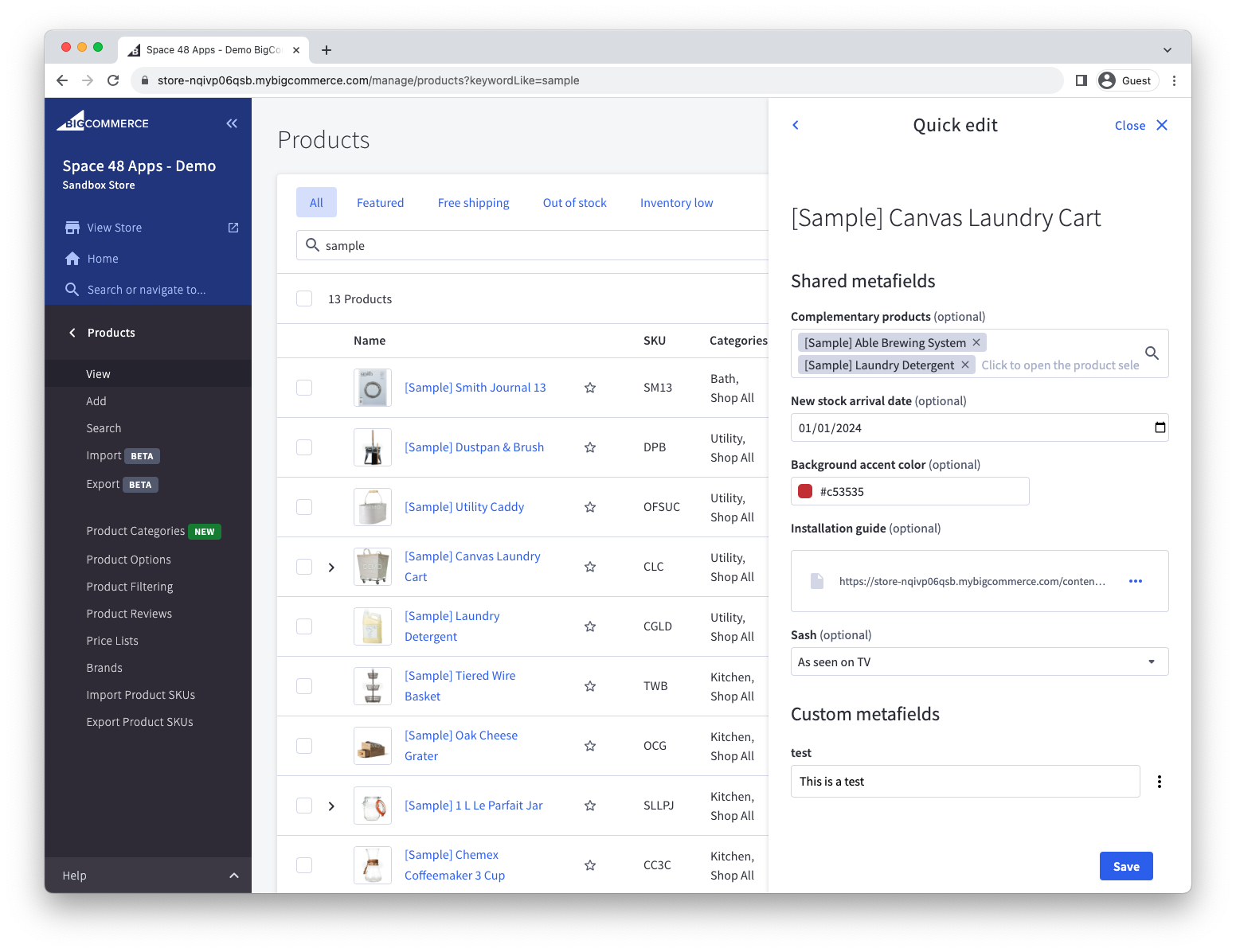
Once you've configured your shared metafields, you can use the Quick Edit feature from the Products and Orders screen within BigCommerce admin.
This view can be found by clicking the three dots at the end of a product row and choosing the Metafields Manager - Quick Edit option.
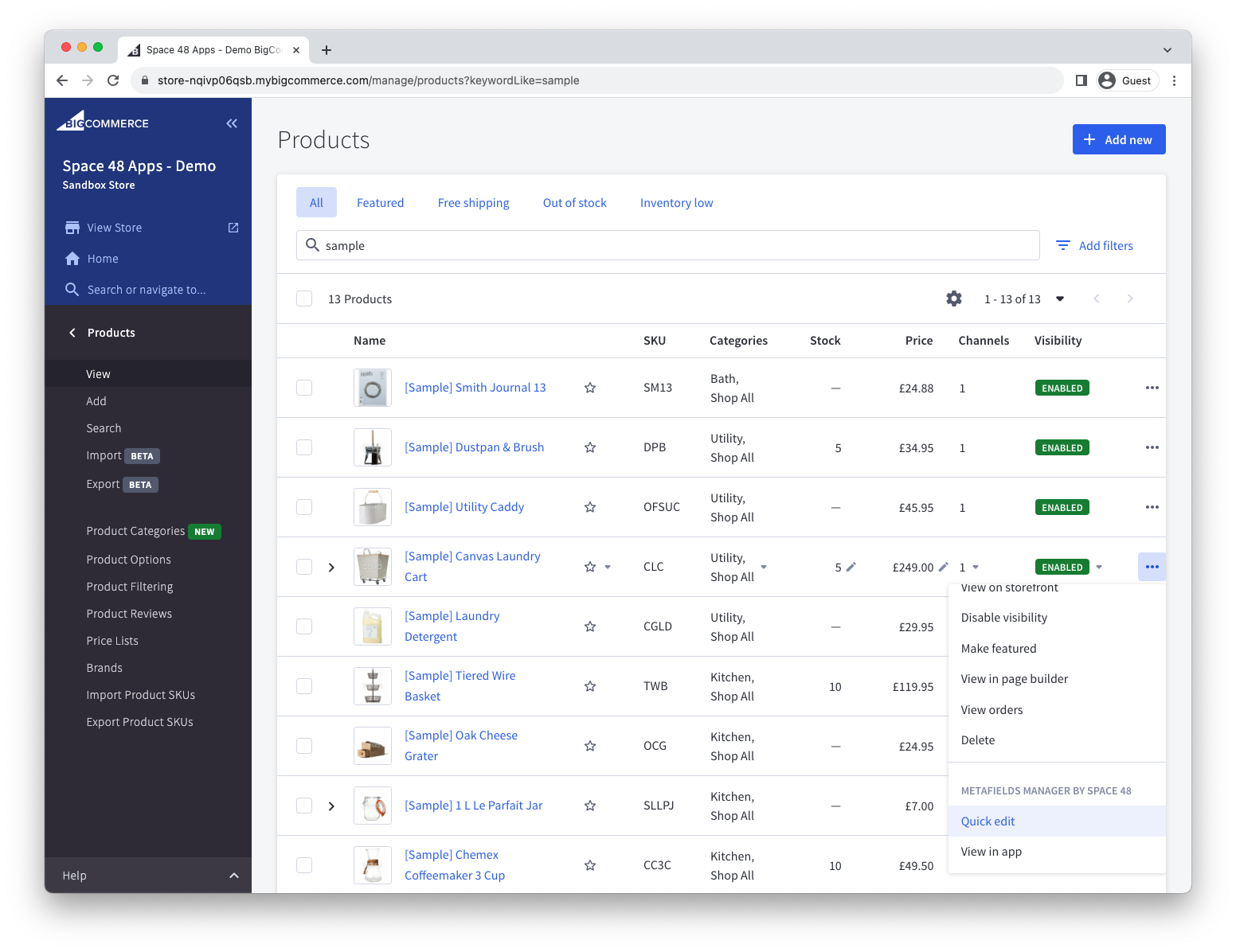
Note that in this view you can also make changes to custom metafields, i.e. ones that only exist on this product.
To change the order of fields, go to Manage Shared Metafields and drag and drop them into the desired order.
Import/export shared metafields
To update shared metafields across items in bulk, use the Shared import/export type. Start with a recent export, then update the values you need. Each row represents an item, such as a product, and each shared metafield has its own column.
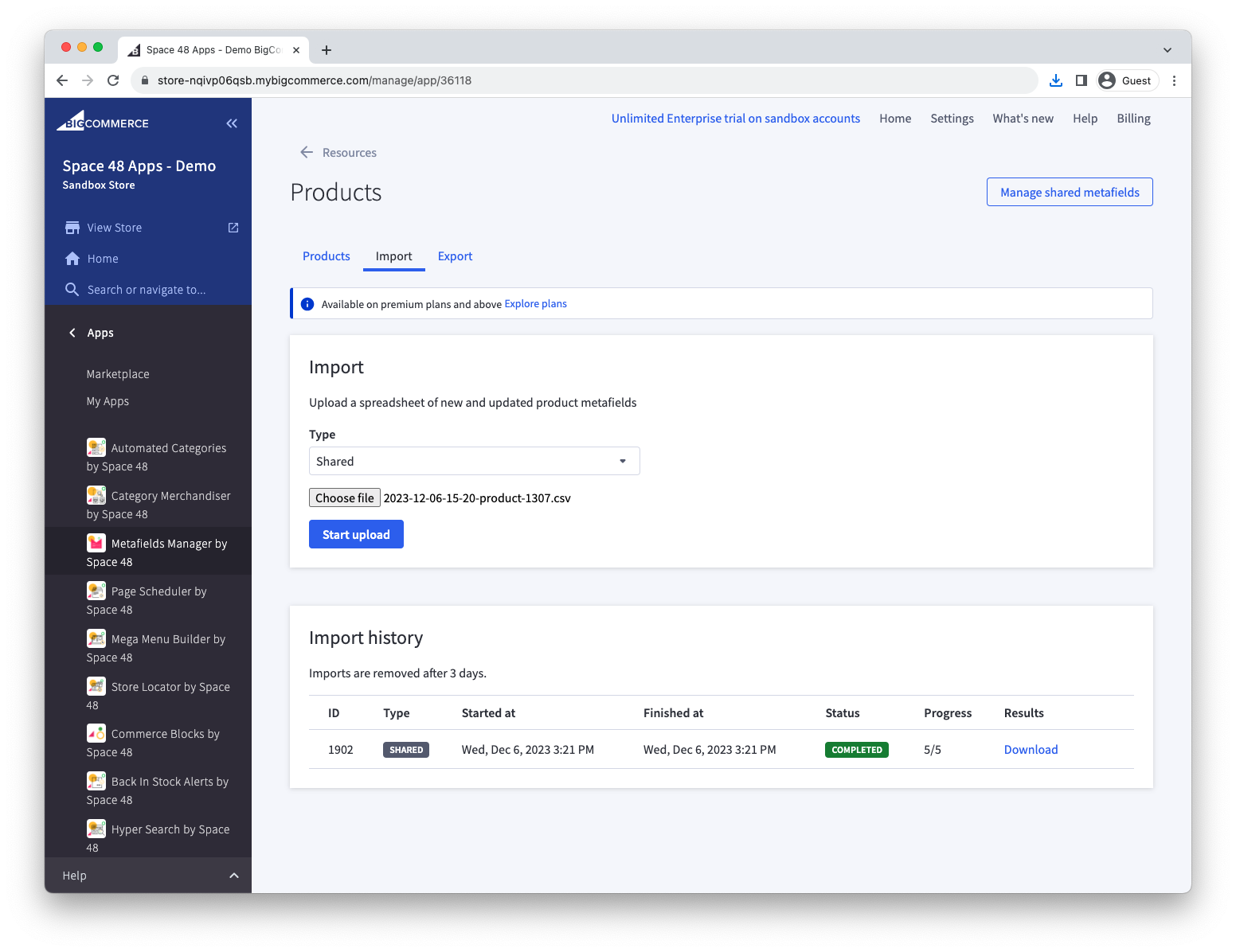
See Import / Export for the CSV format, values for different field types, and how to separate or escape values that contain pipes.