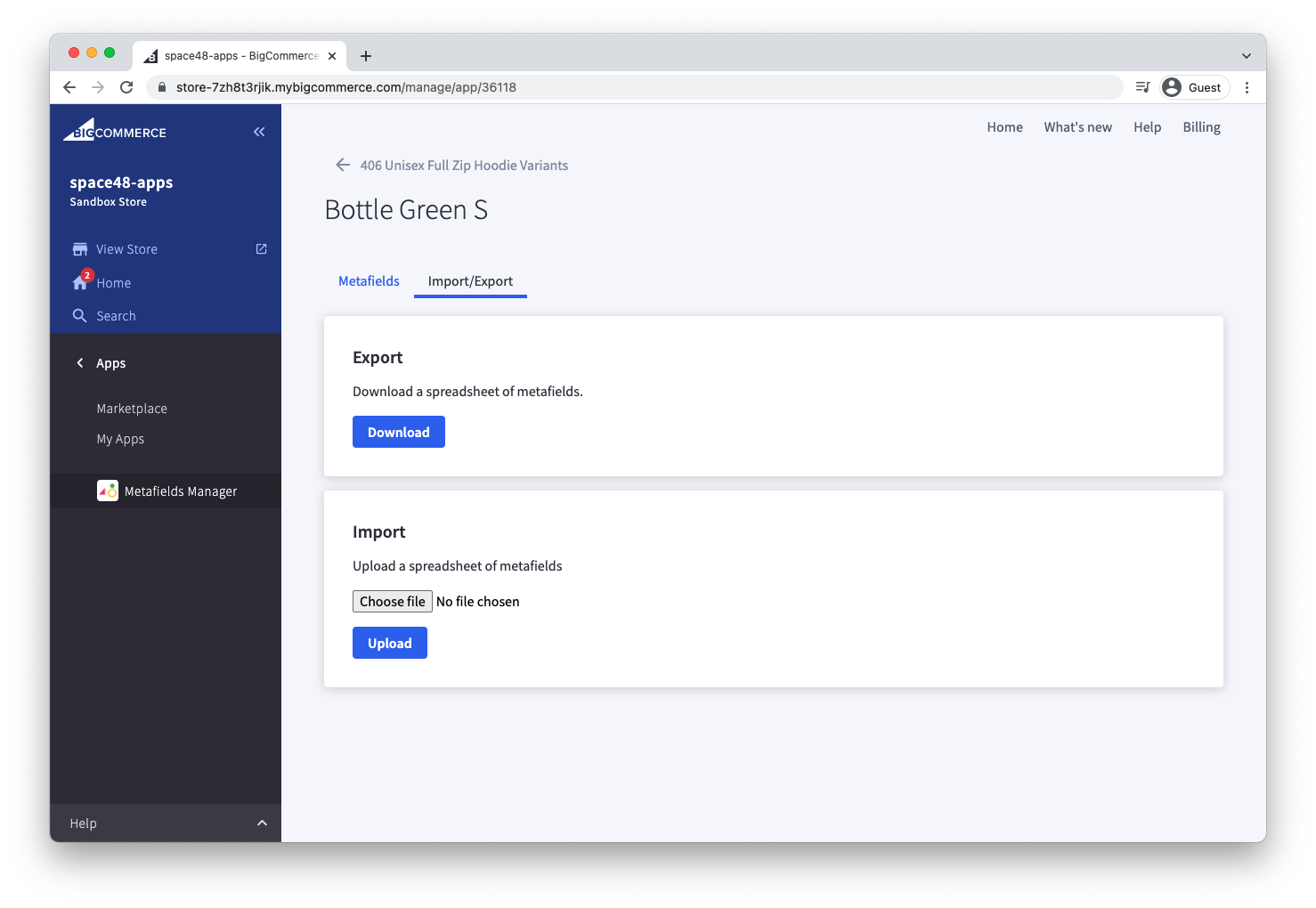
Import / Export
Save time by managing metafields in bulk with the spreadsheet import and export tool.
Export metafields
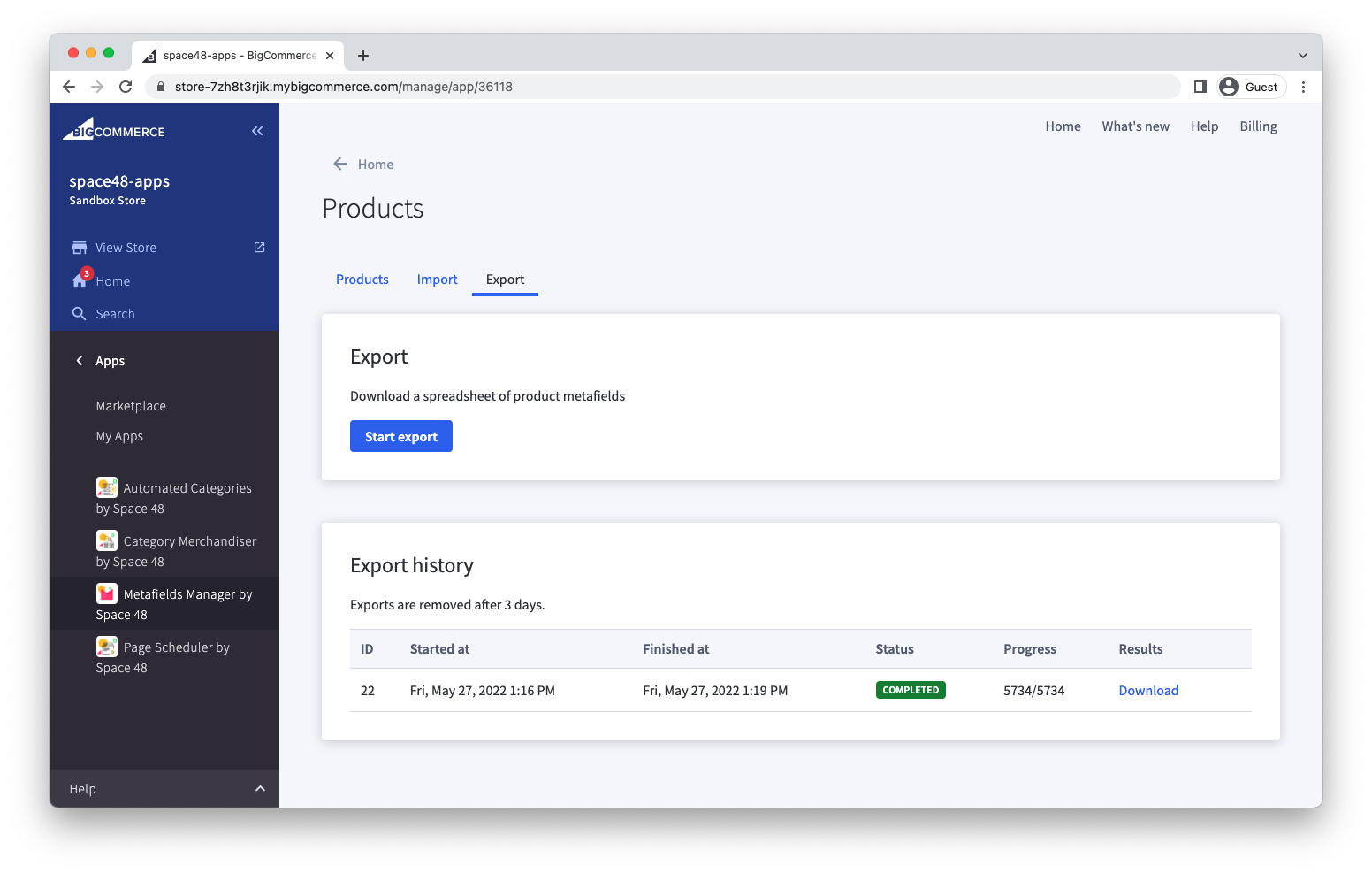
First choose a resource type, such as products. Then click the "Export" tab.
Choose the export type: Shared metafields or Custom metafields.
Choose "Start export".
Once an export starts, its progress appears in the "Export history" section.
Exports are deleted after 3 days.
Progress is shown for all recent exports. A link to download the results appears when the process is complete.
Import metafields
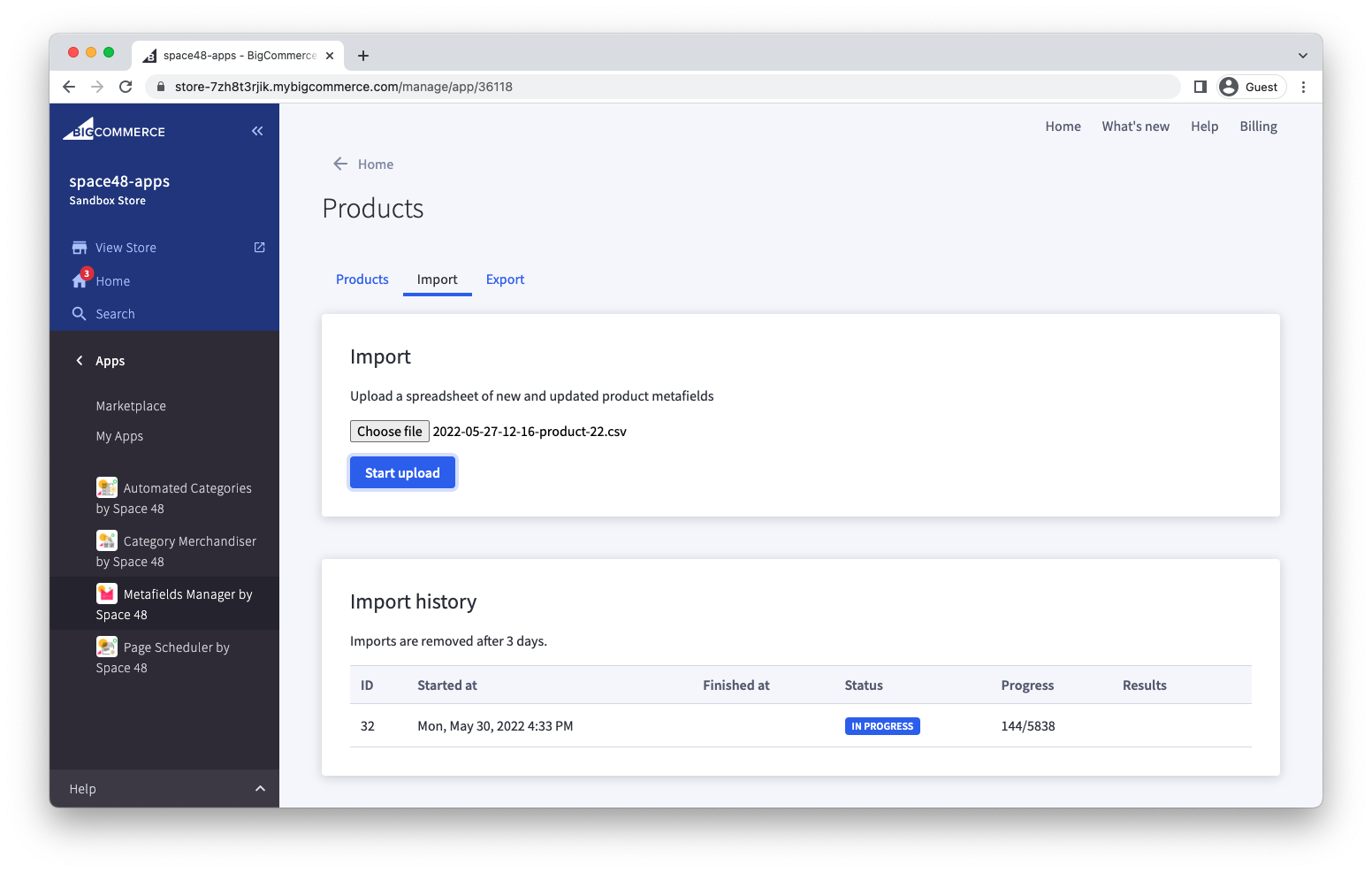
- Open a resource type, such as products, and select the Import tab.
- Choose a file and select Start upload.
- Check the Import history section for the result.
Imports are deleted after 3 days.
There are two different import formats, depending on the import type: Shared or Custom.
Shared metafields import format
When importing shared metafields, each row is an item, and each column is a shared metafield. Start with a recent Shared export so the item IDs and column names match your store.
The column name for each shared metafield should be of the format: "$namespace.$key".
| Field | Required | Notes |
| id | Yes | The resource id, e.g. product ID, category ID |
| $namespace.$key | No | Include one or more shared metafield columns. The name of the column should be of the format "$namespace.$key", e.g. shared.related_products |
| mode | No | To delete a metafield specify a mode column with value "delete" |
Values for shared metafields
The value in each cell depends on the shared metafield's content type and settings. For a select field, use the display label shown under Option values when you configure the field.
| Field type | Value to import |
|---|---|
| Select, one selection | Enter the display label exactly as shown. If it contains a pipe, enter that pipe as shown, without a backslash. |
| Select, multiple selections | Enter the display labels using the format in Multi-selection fields. Use it even when selecting just one option. |
| Product, category, brand, page, or location reference | Enter a numeric item ID. For a list of references, see Multi-selection fields. |
| Custom resource reference | Enter the identifier shown in a recent export. If the custom resource has no unique key, use its ID from the list view. |
| Text or rich text | Text, subject to any configured length limits. |
| Checkbox | Enter yes, no, enabled, disabled, true, false, 1, or 0. |
| Date or date and time | A recognisable date or date and time. The import converts valid values to YYYY-MM-DD or YYYY-MM-DDTHH:MM:SS. |
| Number or decimal | A numeric value. Any configured minimum or maximum still applies. |
| JSON | Valid JSON. |
| Colour | A hexadecimal colour such as #336699 or #369. |
| File | A full URL. |
| URL | A full URL, or a path beginning with / if the field is configured for relative URLs. |
| File and label | A JSON array of file objects. Each object needs an id and url; label is optional. Start with an export for the expected structure. |
Multi-selection fields
For a select field with Allow multiple selections enabled, separate the display labels with a pipe (|). If a display label itself contains a pipe, put a backslash immediately before that pipe (\|). This tells the importer that the pipe is part of the label rather than a separator. Use the same escaping when importing just one selection into a multi-select field.
For example, suppose the display labels are Blue | Green and Red. To select both, enter:
id,shared.colours
123,Blue \| Green|Red
Here, \| belongs to the first label, while the unescaped | separates the two selections. To select only Blue | Green, enter Blue \| Green.
For a list of product, category, brand, page, or location references, separate their IDs with an unescaped pipe, for example 123|456. Use the same separator for a list of custom resource identifiers.
If an import reports that a select value does not exist, compare the cell with the field's display labels. Check that pipes within labels are escaped and pipes between selections are not.
Skip or delete a shared metafield
Leave a shared metafield cell blank to skip updating that field for the item. To delete a metafield instead, enter delete in the mode column for its row. The mode applies to every populated shared metafield column on that row, so use a separate row or file if you need to delete one field while updating others.
Custom metafields import format
When importing custom metafields, each row of the spreadsheet refers to an individual metafield and so requires an identifier of the resource item, i.e. product, as well as the required fields for a metafield.
The supported columns for a custom metafields import are shown below.
Start with a recent export spreadsheet when preparing a custom metafields import.
| Field | Required | Notes |
| id | Yes | The resource id, e.g. product ID, category ID |
| namespace | Yes | This is BigCommerce's way of grouping metafields together to avoid the keys clashing with metafields created by other apps and API users. |
| key | Yes | Metafield name |
| permission_set | On creation | Allowed values are "read", "write", "read_and_sf_access", "write_and_sf_access" and "app_only". We recommend using "write" or "write_and_sf_access". |
| value | On creation | Once this field is set it can be changed but cannot be set as an empty value, e.g. "" or null. |
| description | No | Once this field is set it can be changed but cannot be set as an empty value, e.g. "" or null. |
| name | No | This field is ignored. It's included in exports to make it easier to read and identify items |
| mode | No | To delete a metafield specify a mode column with value "delete" |
To delete a metafield, specify "delete" mode on the appropriate row in column "mode".
Import errors
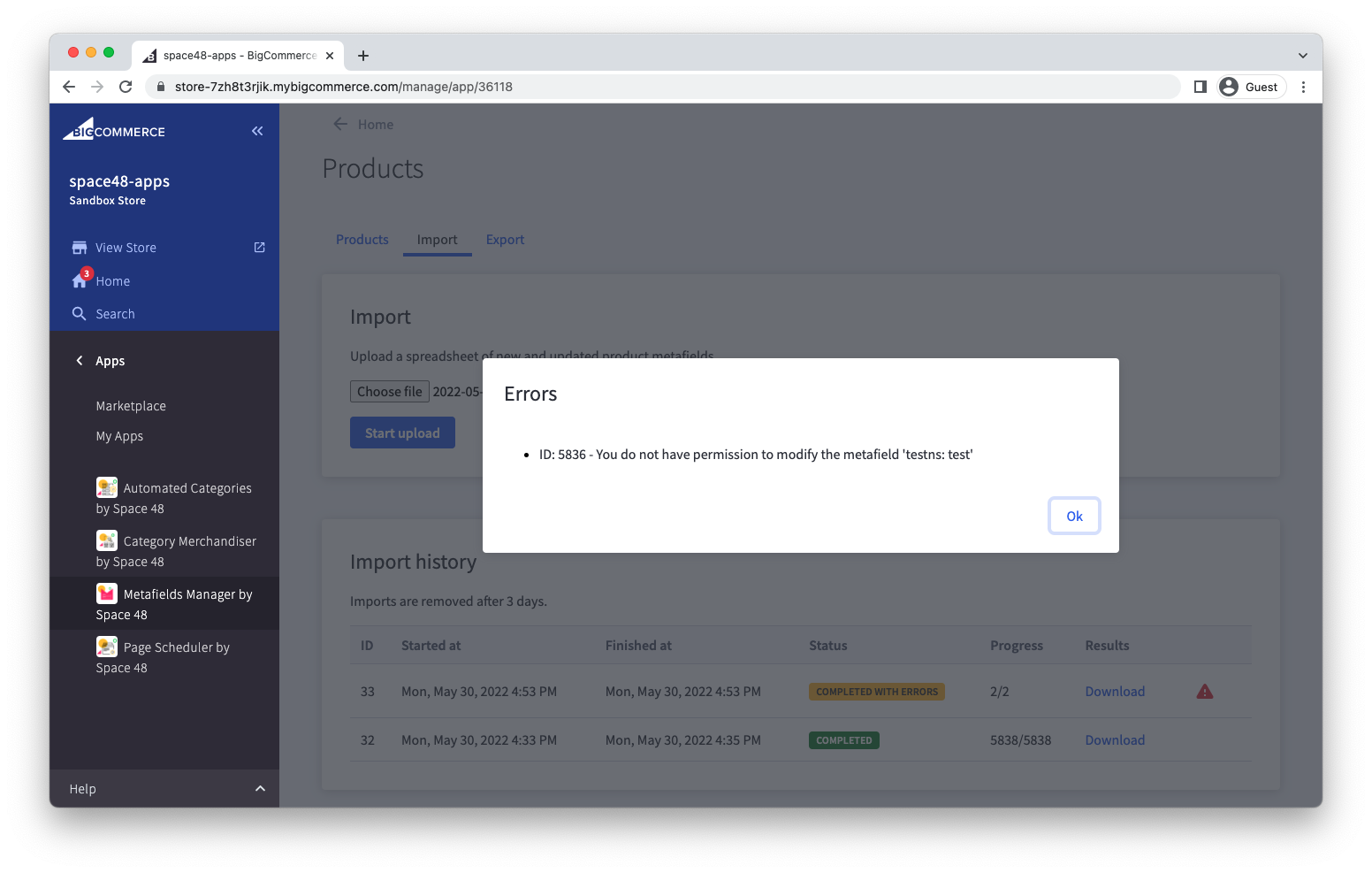
If an error occurs while updating a metafield, the status changes to "Completed with errors". View the errors by clicking the red warning triangle, or download the results spreadsheet. The spreadsheet includes columns showing which update failed and why.
Common Errors
"You do not have permission to delete the metafield"
BigCommerce only allows the original API user that created the metafield to delete the metafield. Consider how this metafield was created to identify which app or API account needs to delete the metafield.
"You do not have permission to modify the metafield"
The value field of a metafield can only be updated if permission_set is set to "write" or "write_and_sf_access", or the metafield was created by the app.
The namespace, key, description and permission_set fields can only be updated by the app or API user that created the metafield.
Unable to update metafield - Invalid field(s): value
The value field cannot be empty. If you need to unset it, delete the metafield or set it to a known "falsy" value that your code can detect, such as "null" or "_empty_".
Single-item import/export
If you only want to manage one item's metafields, create an export from the item view. For example, when editing a product variant, open the "Import/Export" tab to manage that item's metafields in bulk.