Custom resources
This feature is available on Enterprise plans.
Bring a lightweight CMS to your BigCommerce store
BigCommerce metafields and shared metafields simplify content management by defining fields in advance.
However, sometimes you need just a bit more structure so that you can manage content in a single place.
For example, your products might have a Size Guide section that differs for women's, men's, and children's shoes.
If you were to manage this in metafields, the content would need to be duplicated. Managing size guides in Page Builder would also come with challenges.
Custom Resources brings a lightweight CMS to BigCommerce. Add a "Size Guide" resource and choose its fields. You can then create, update, and delete size guides.
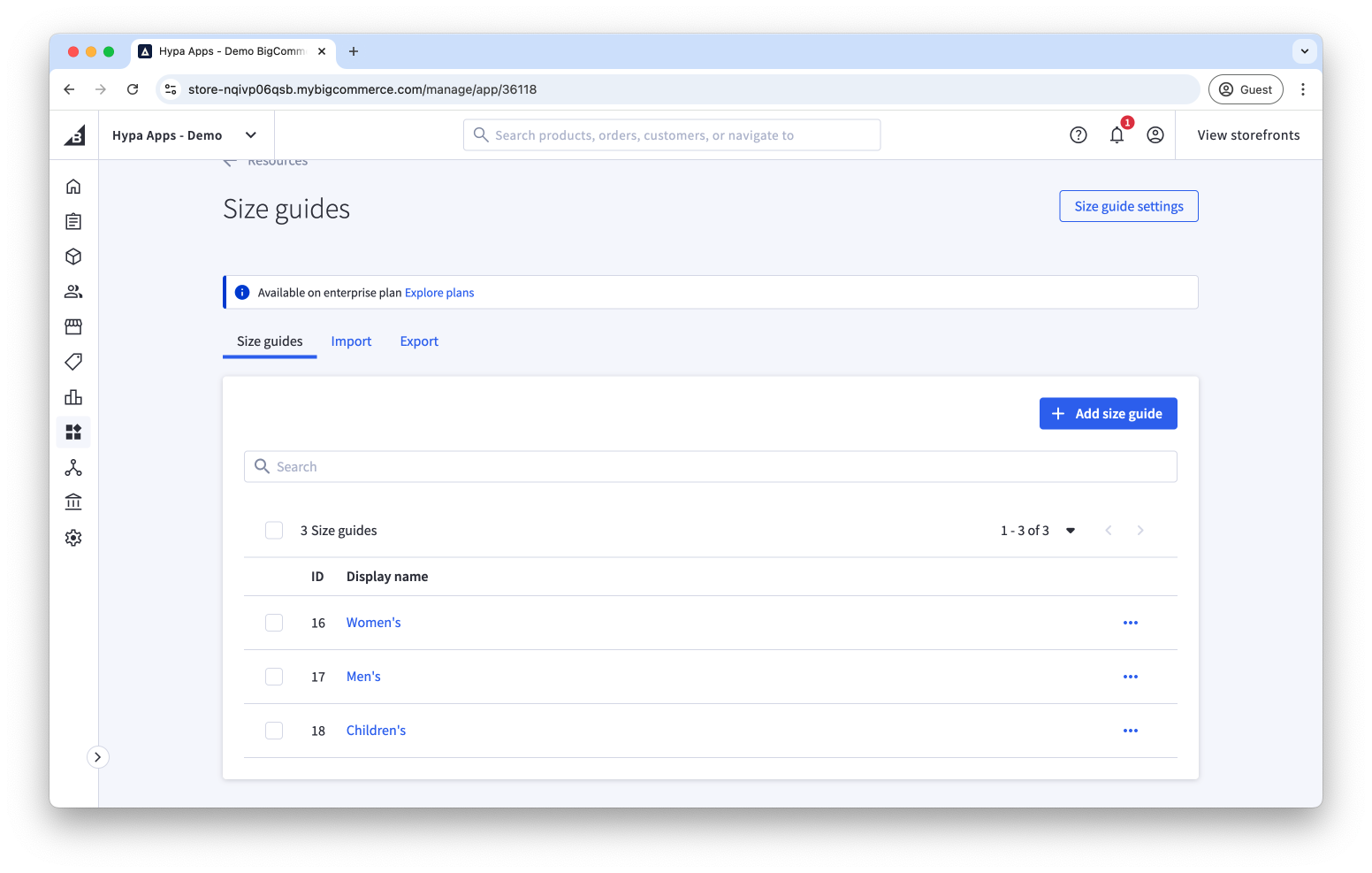
Once you've written your content, create a shared metafield on products with the "Size Guide" content type. You can then select a size guide for every product.
Your BigCommerce theme can then be updated to show the Size Guide.
Creating a Custom Resource
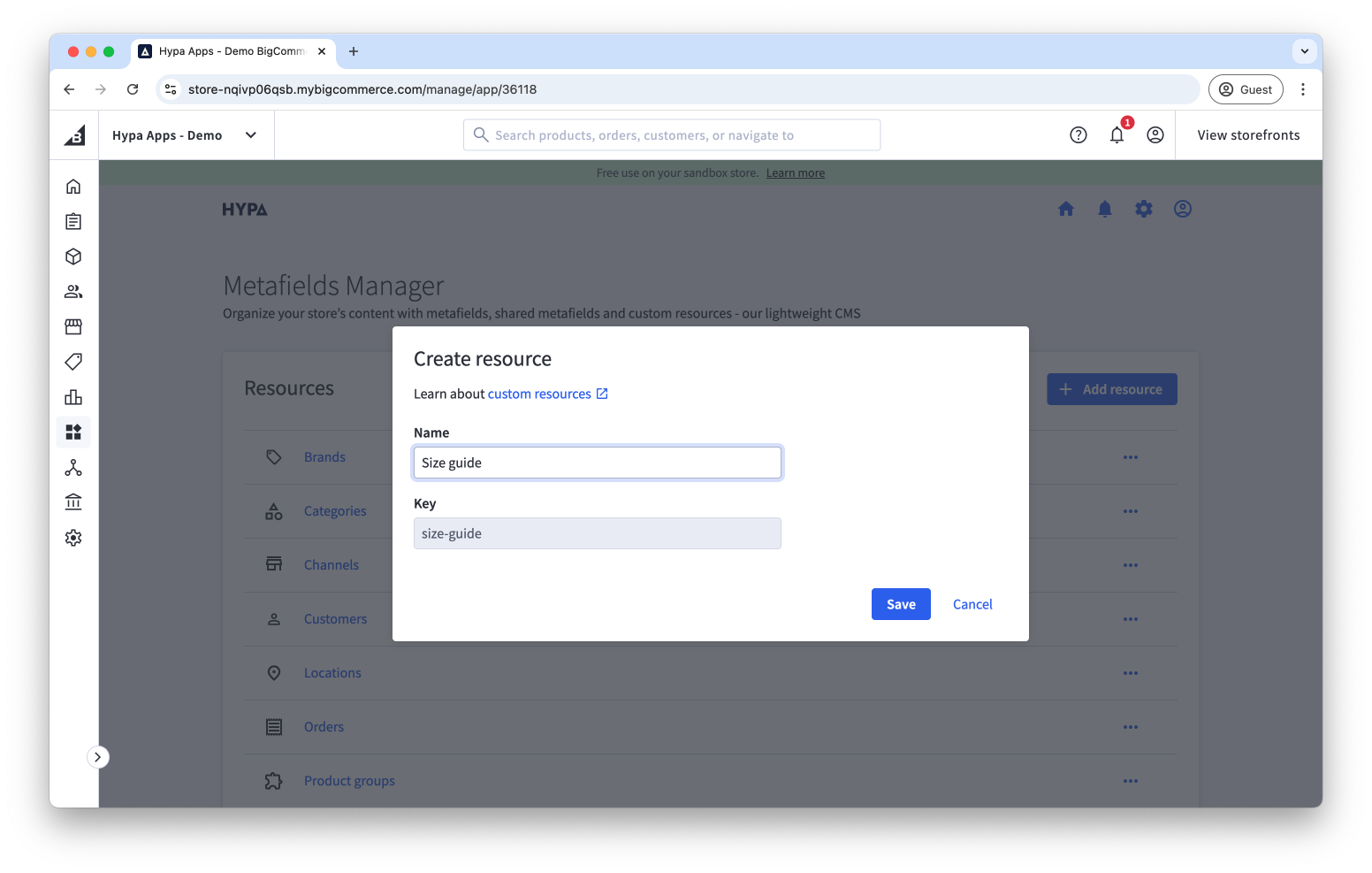
To create a resource, open the app and select "Add resource". First, provide a name such as "Size Guide".
We recommend that you use the singular rather than the plural version of the name, e.g. "Size guide" not "Size Guides".
Adding fields to a custom resource
After you create the resource, its settings page opens. You can then add fields to your size guide.
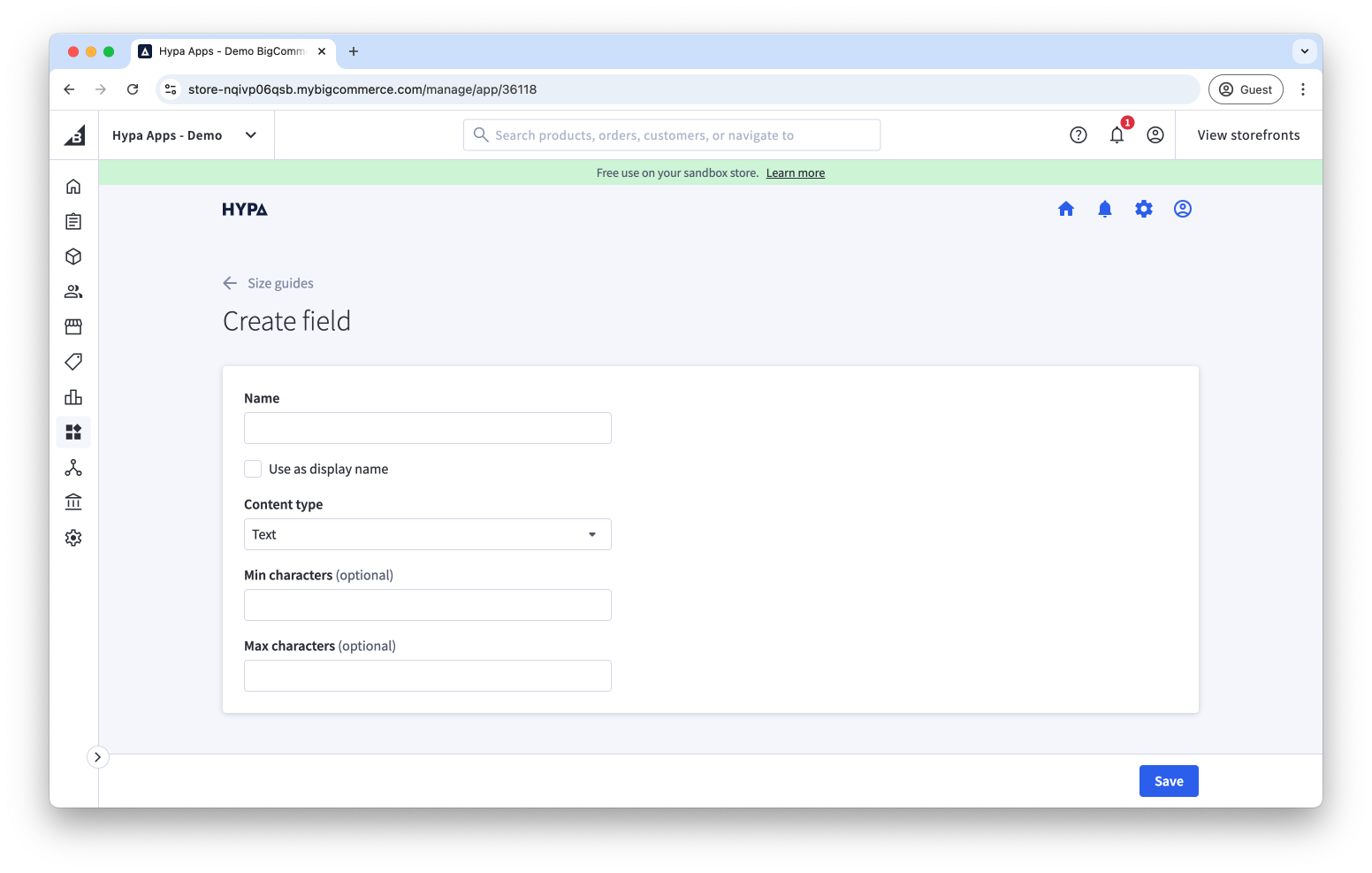
We recommend adding a Name field and marking it with Use as display name. The display name is used as the main way of identifying resource items within the app.
When creating a field, the following options are shown:
| Option | Description |
|---|---|
| Name | The name of the field. |
| Use as display name | Uses this field as the name and primary label for each resource item. |
| Content type | The type of content stored in this field, such as text, select, product, date, checkbox, or JSON. |
| Single or List | For supported fields such as products, choose whether one or multiple items can be selected. |
| Min/Max Characters | For text fields, define the minimum and maximum number of characters. |
Creating a resource item
Now that the resource has fields, create your first entry, such as a Size Guide.
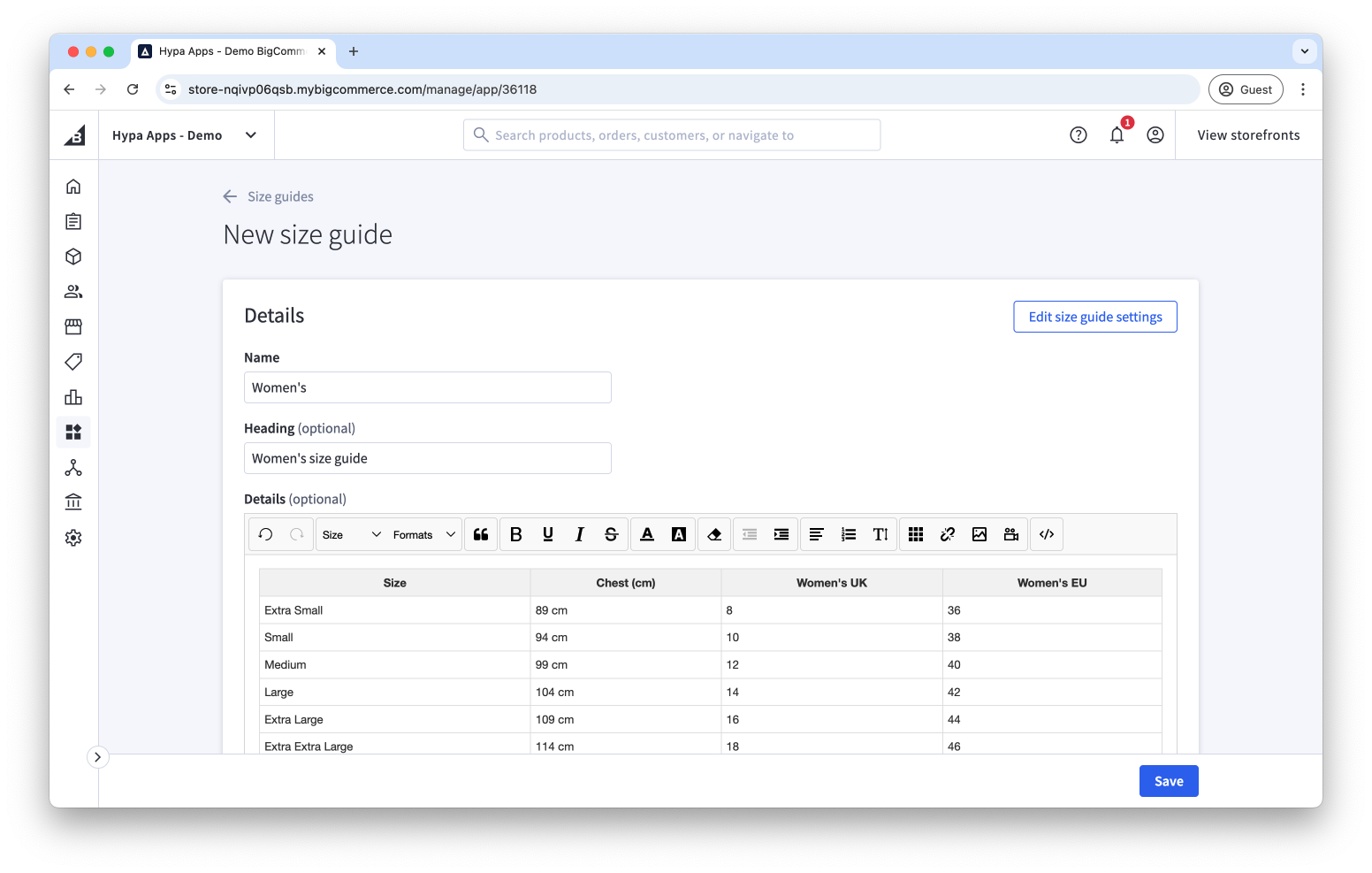
The form is generated based on the fields that were created in the previous step.
Continue adding as many items as you need.
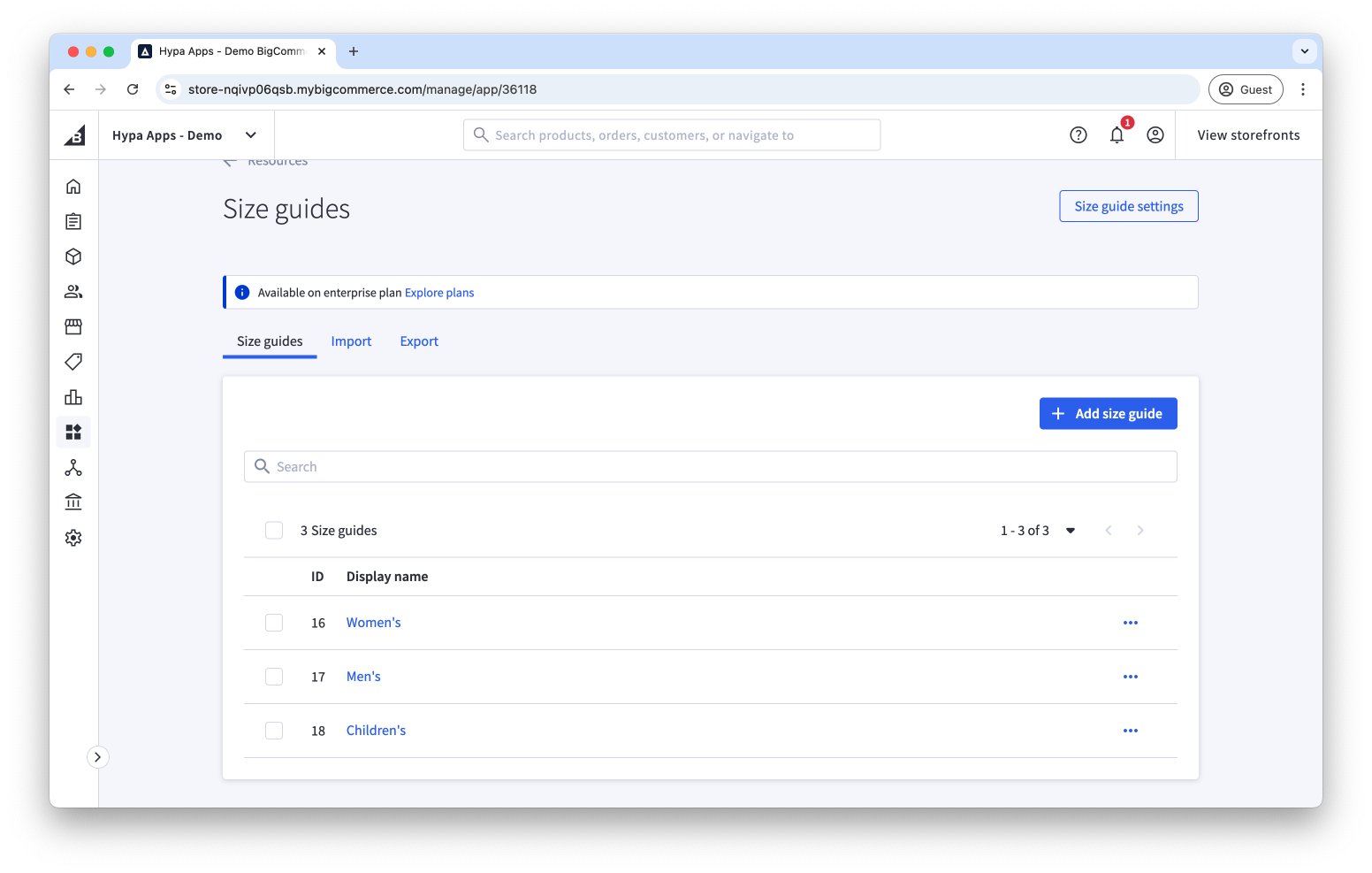
Each time a resource item is updated, it is republished to all instances of the shared metafield.
Creating a shared metafield
To use your resource items, open Manage shared metafields for the BigCommerce resource to which you want to assign them. For the Size Guide example, open Products in the app and choose Manage shared metafields.
Then, create a new shared product metafield called "Size Guide" and choose the new "Size Guide" content type.
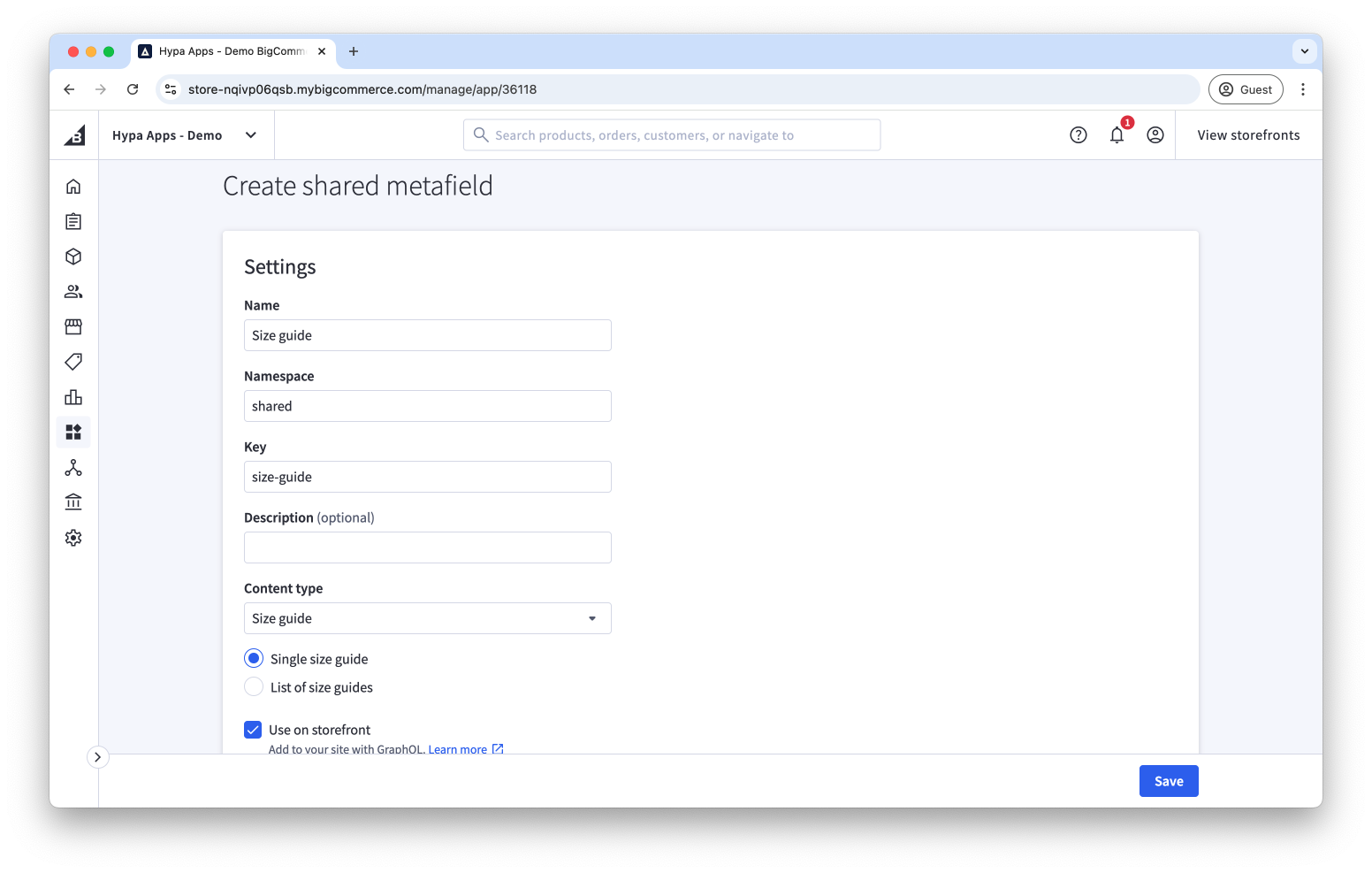
You can also choose whether a single or a list of items can be assigned to the shared metafield.
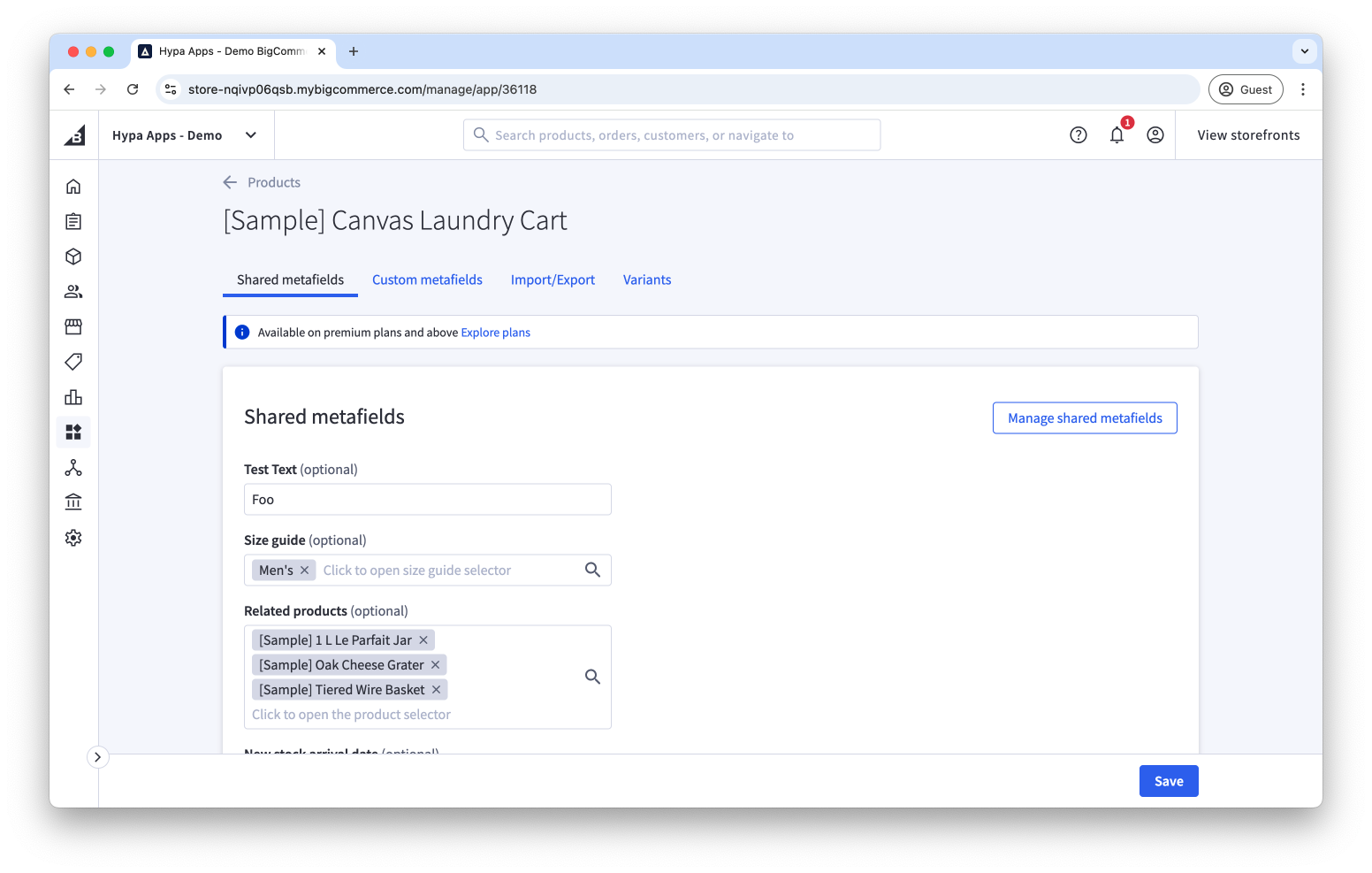
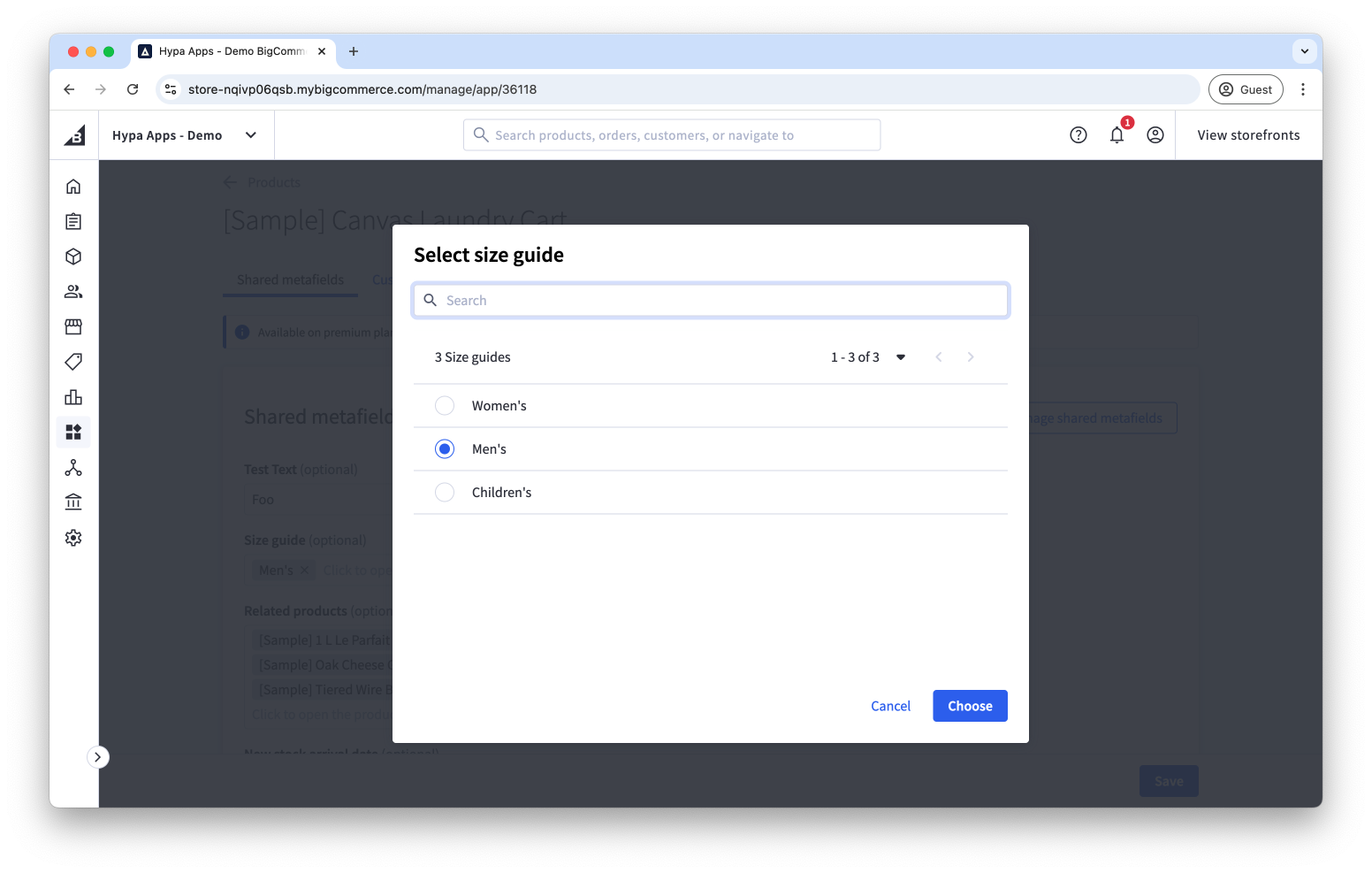
You are now ready to assign custom resource items to BigCommerce resources, such as assigning a Size Guide to products.
Import/Export
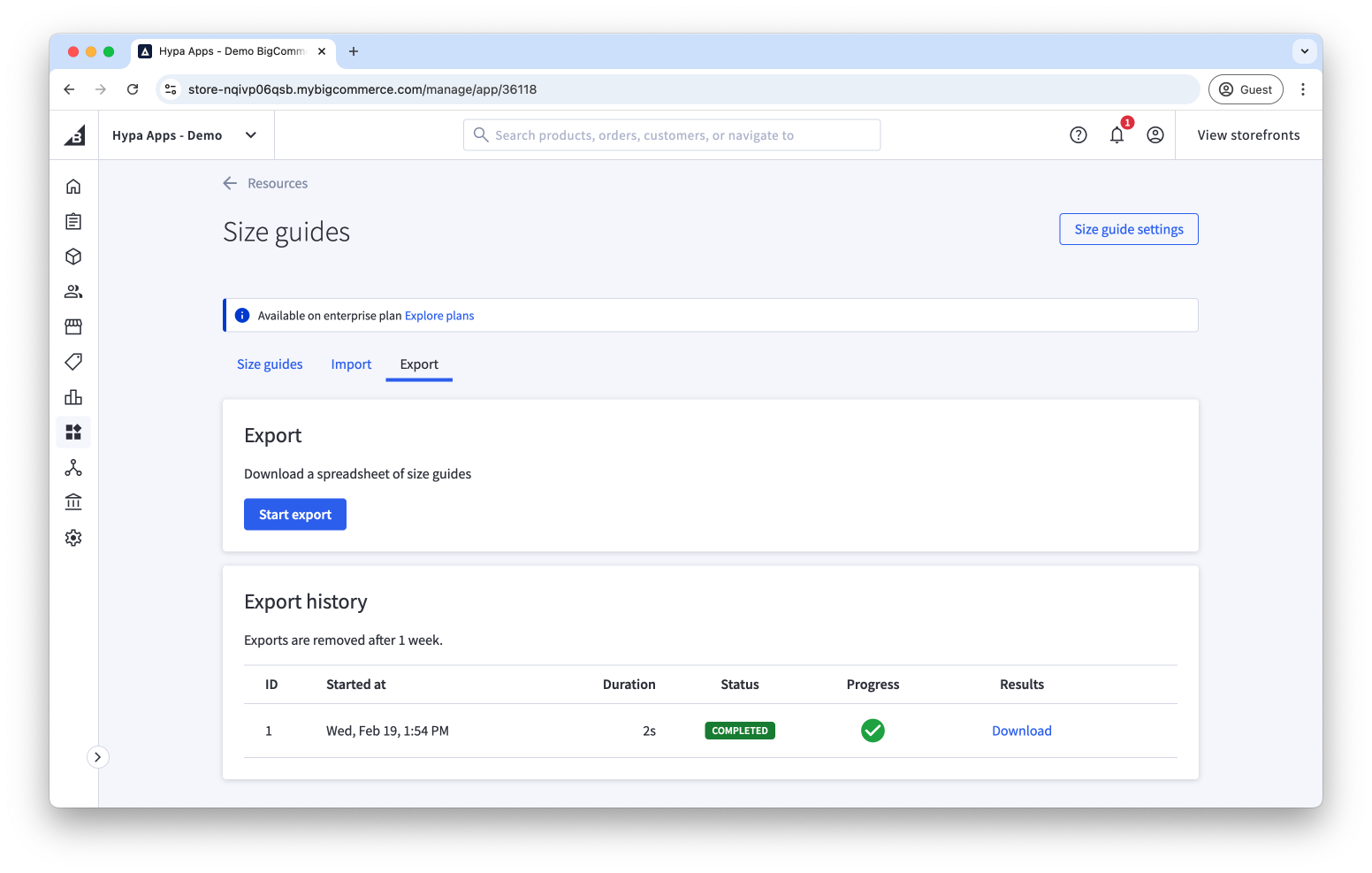
You can also export custom resources, such as Size Guides, to a spreadsheet. Make bulk changes or additions, then import the file.
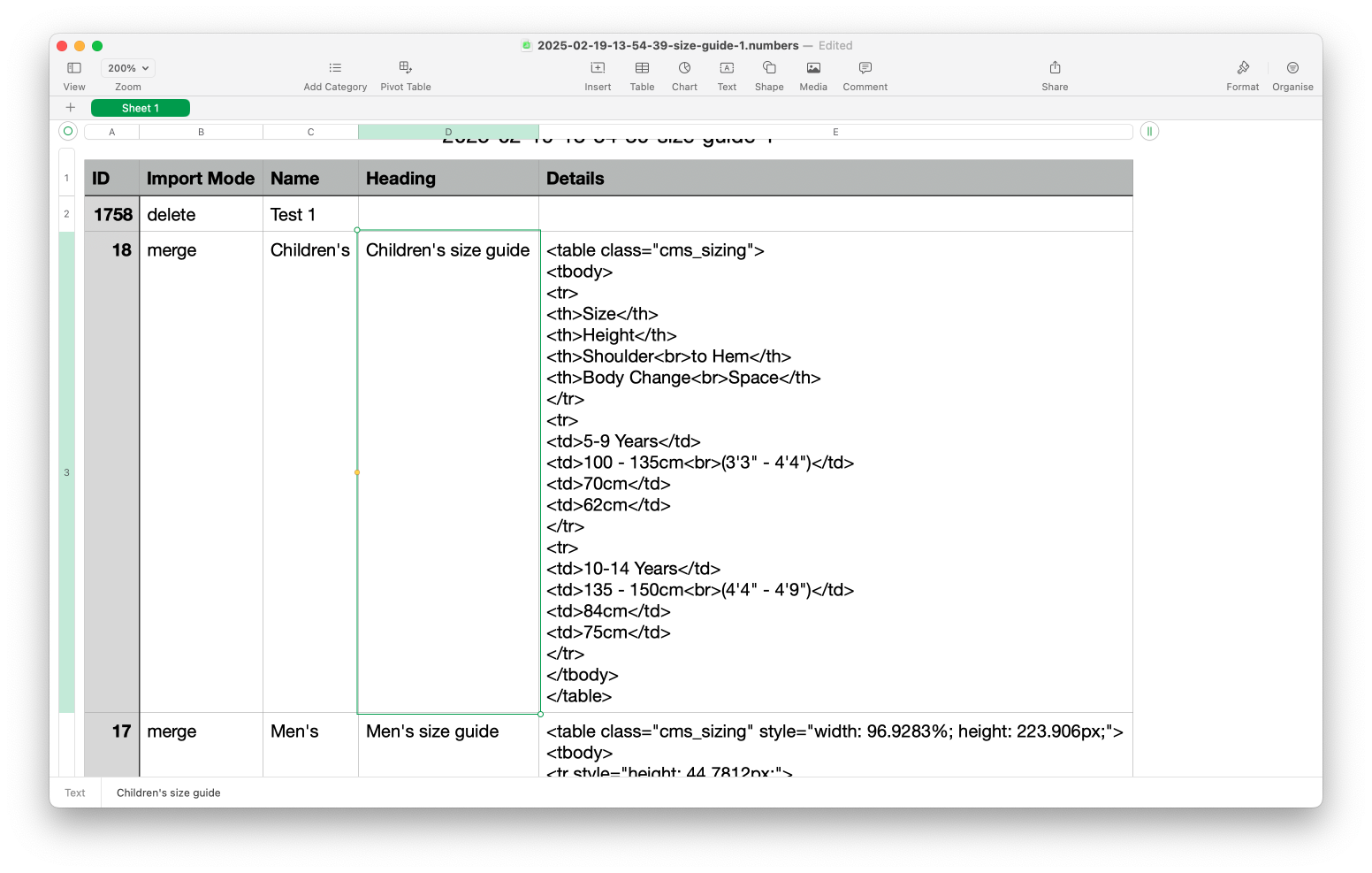
The format of the spreadsheet will be:
| Column | Description |
| ID | The entry ID. Visible in the list of entries, and in the export. |
| Import Mode | Used to determine whether items should be created and updated, or deleted. Available values are The default value is |
| ... all custom resource fields | You'll then have a column for each field on the resource When creating a new entry, the name field is the only required field. When updating entries, there are no required columns apart from |
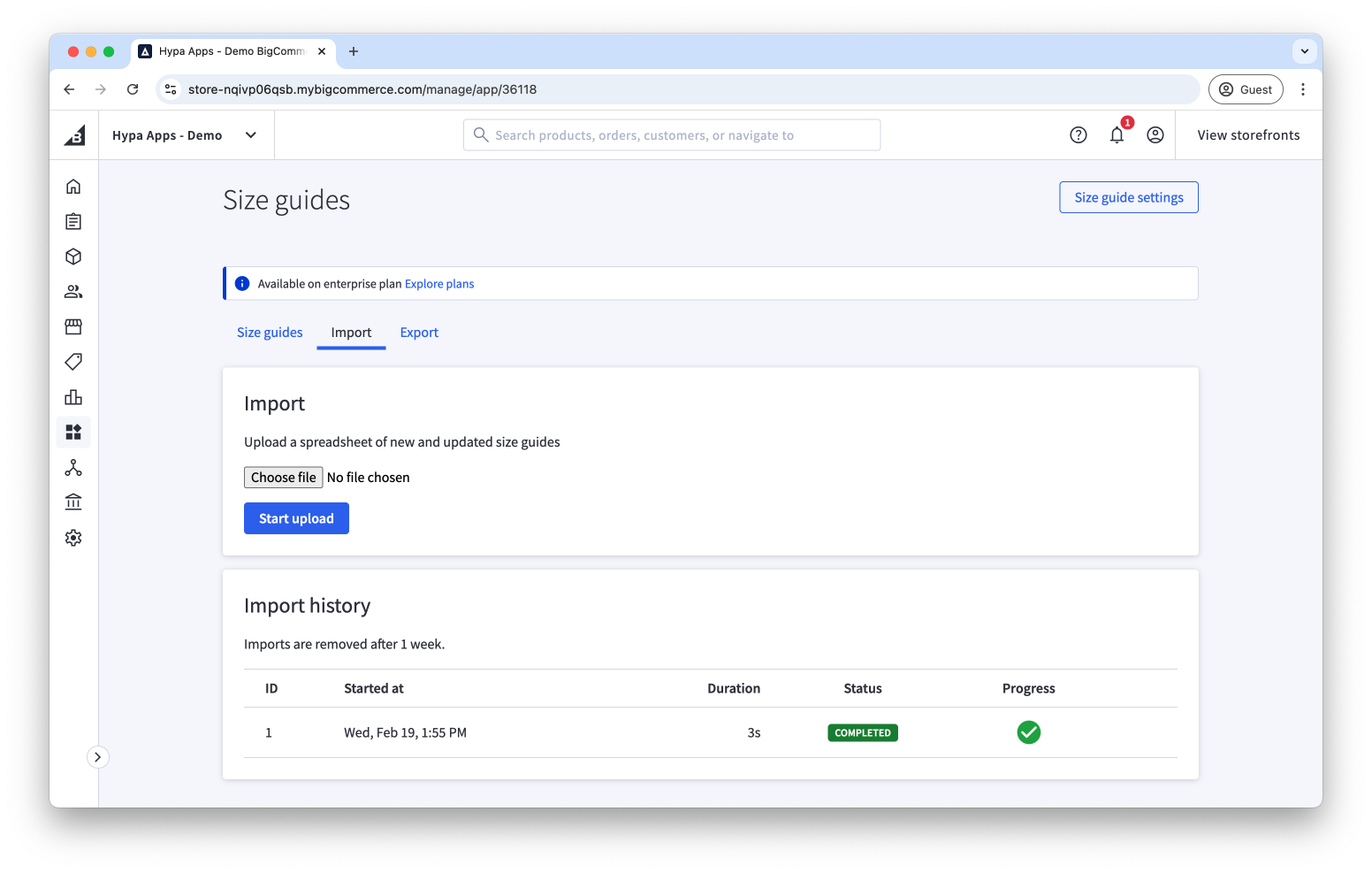
When you're ready, choose the Import tab and choose the file to import.
Adding custom resources to your theme
Some development is required to use custom resources in your theme. They are fetched with your other shared metafields through a GraphQL query. You can do this through front matter or a storefront AJAX request. See our guides for using metafields on the storefront.
All information about the custom resource will be available in JSON format and can be parsed with the JSONParse handlebars helper.
For example, to access the Size Guide on a product, first query the metafields:
---
gql: "query productMetafieldsById($productId: Int!) {
  site {
    product(entityId: $productId) {
      entityId
      name
      metafields(
        namespace: \"shared\"
        keys: [\"size_guide\"]
      ) {
	edges {
	  node {
            key
            value
          }
        }
      }
    }
  }
}
"
---
To show the Size Guide HTML on the page, you would then add the following to your theme:
Each time a resource item, e.g. Size Guide, is updated, it's republished to all instances of the shared metafield.
An API to access custom resources programmatically is coming soon. Please contact us to find out more.